Complete step-by-step instructions on how to set up Power BI auto-refresh
Important links:
- Install and configure On-premises data gateways
- Authentication URL: https://oauth.powerbi.com/views/oauthredirect.html
- Power BI App
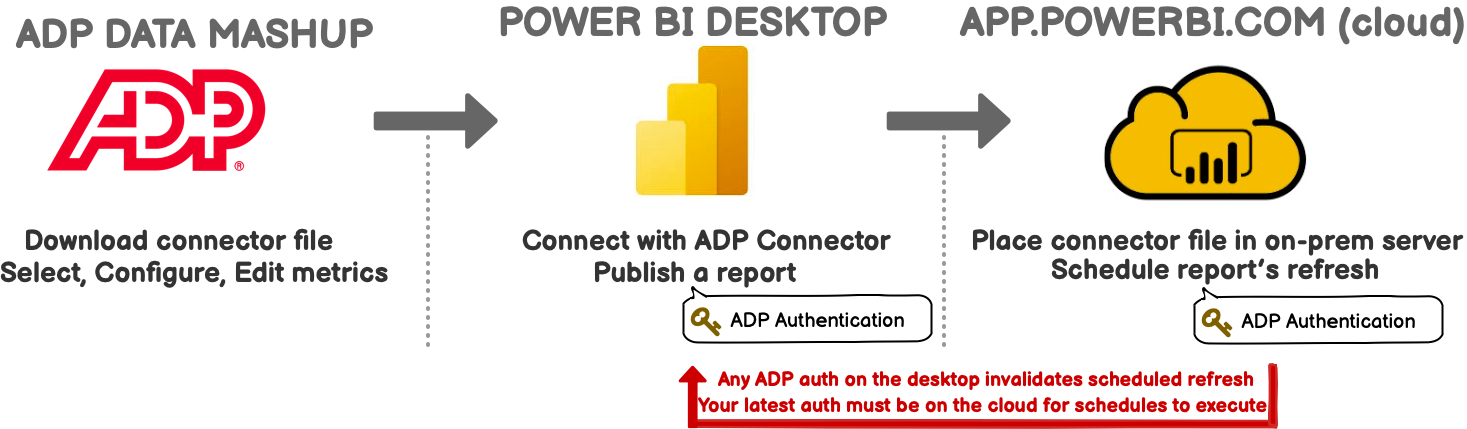
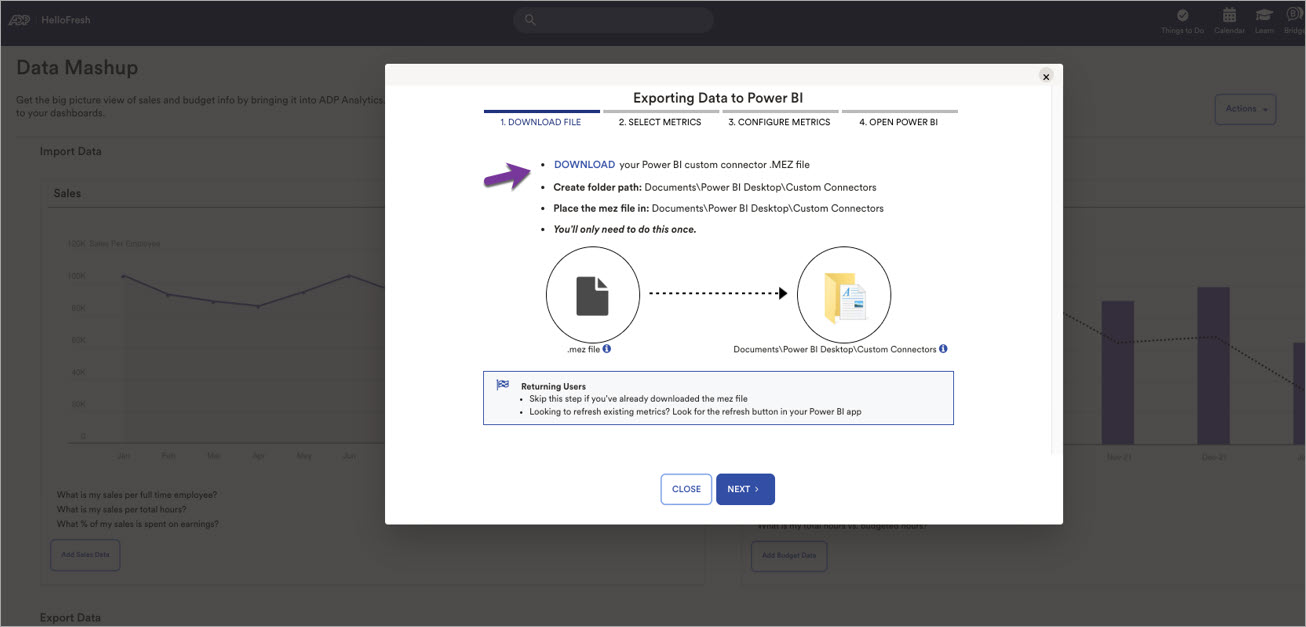
To configure On-premises data gateways, download the latest mez file from the ADP Website:
From the Main menu >> Reports & Analytics >> Dashboards >> Data Mashup >> PowerBI Connect now >> Download
Place the Mez file on your own on-prem gateway servers.
Add metrics to your ADP Power BI queue.
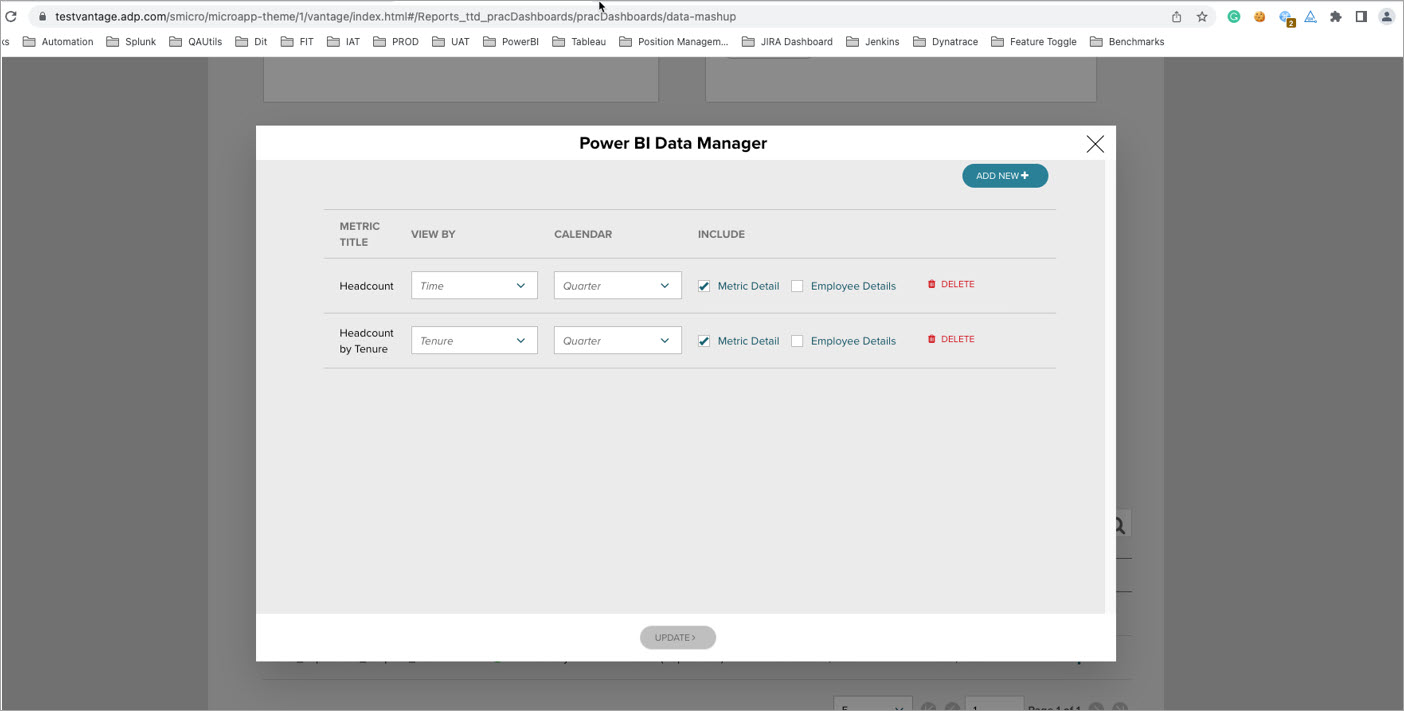
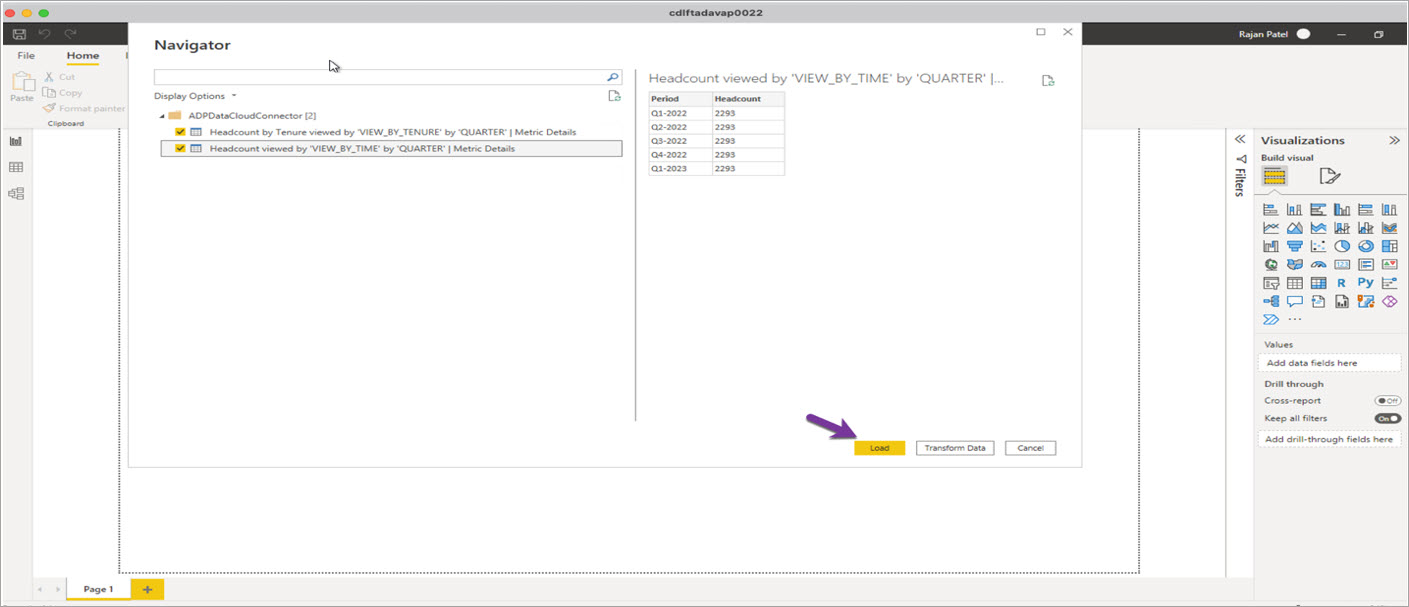
Login to the Power BI Desktop App, then click Load button to load the metrics data.
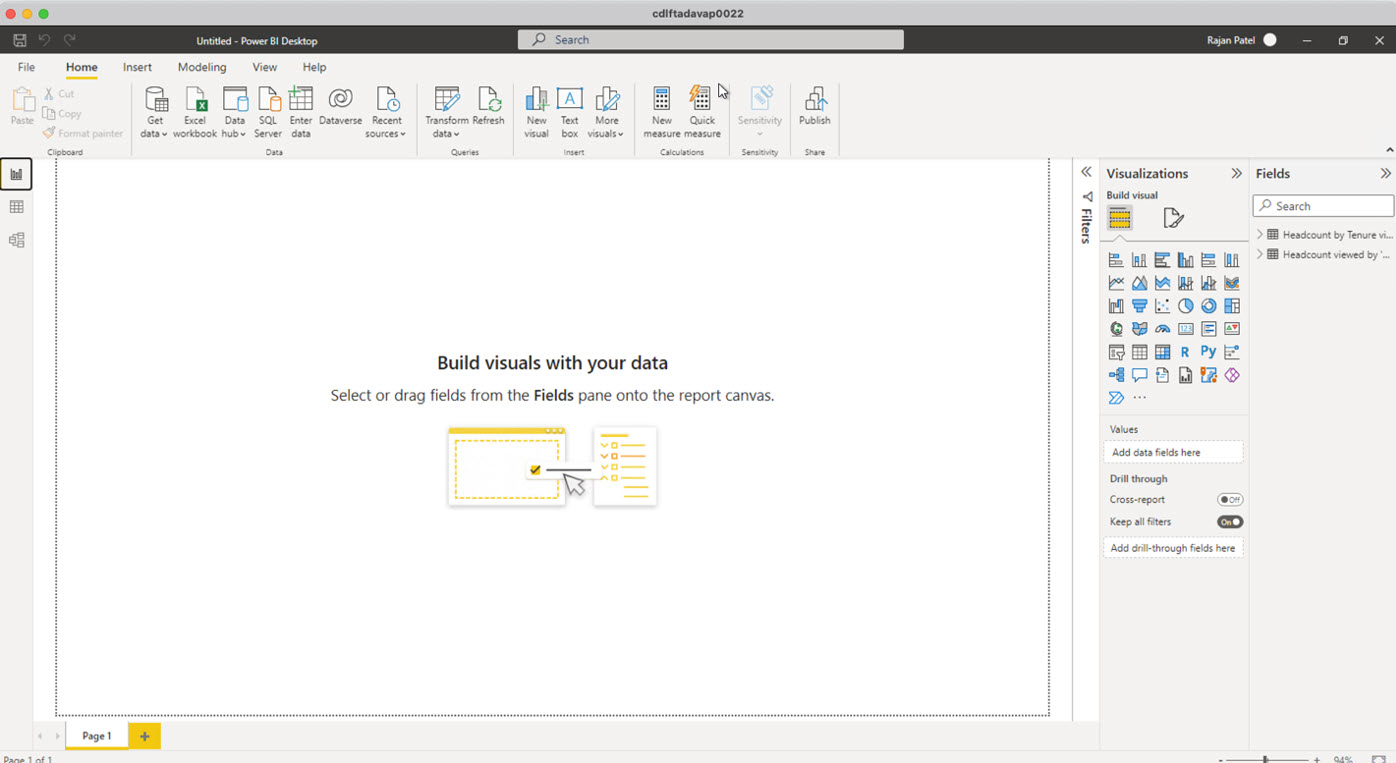
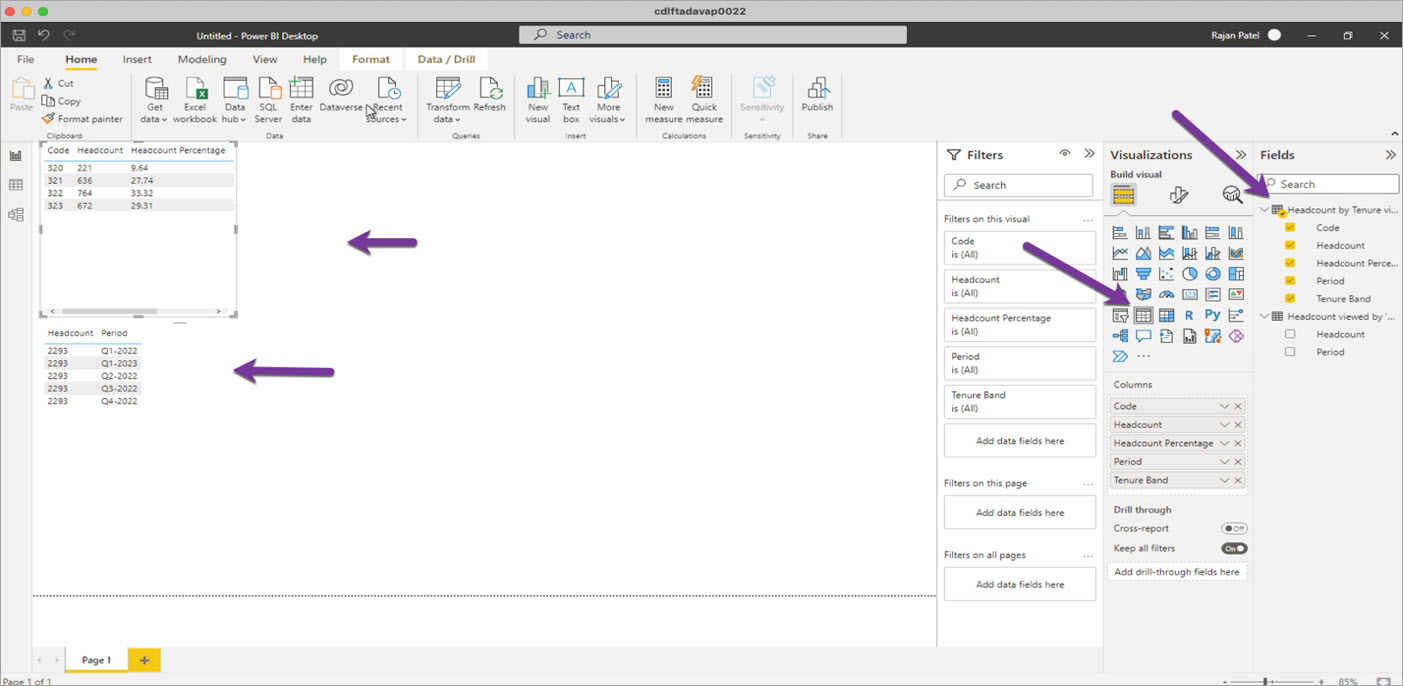
Click the Visual icon to configure reports.
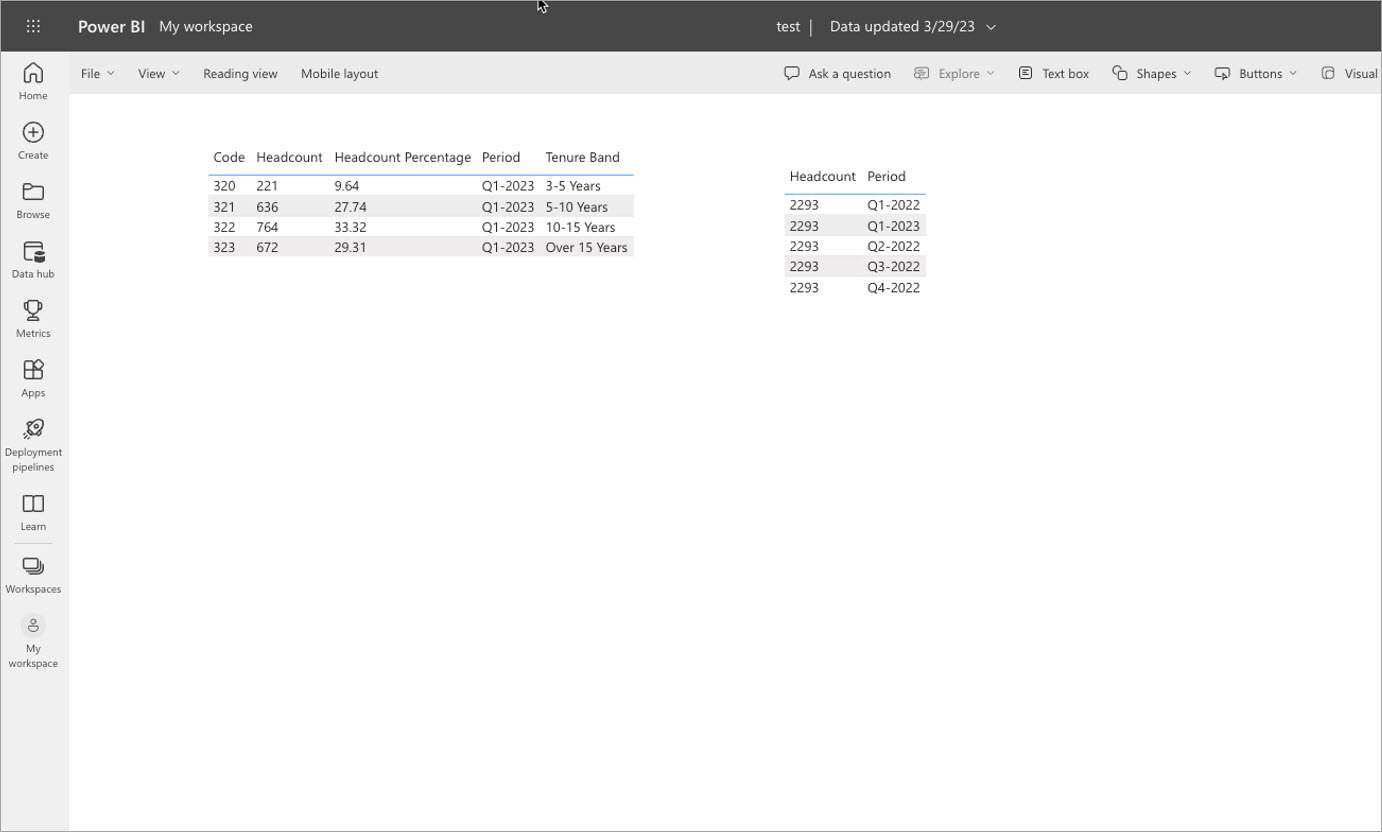
Here I configured the two reports.
To Publish the reports click Publish.
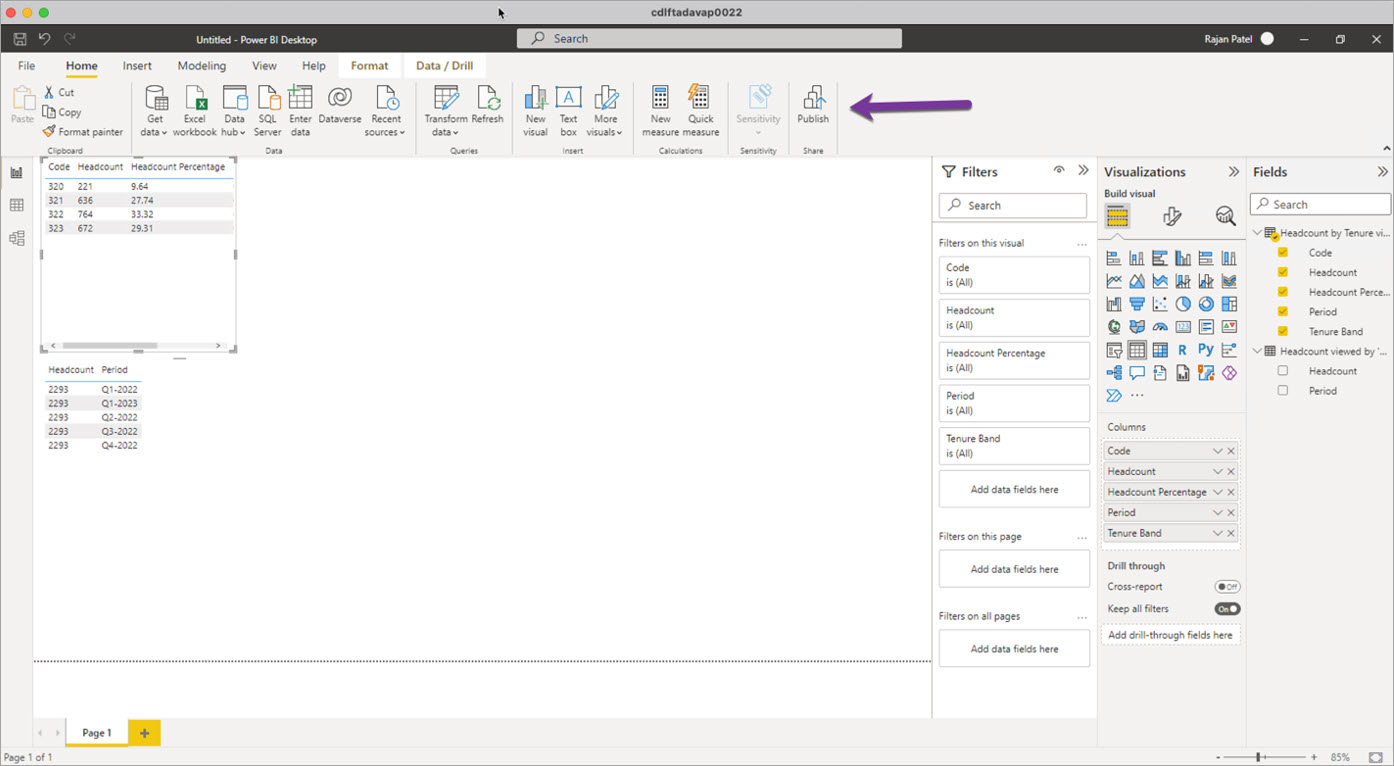
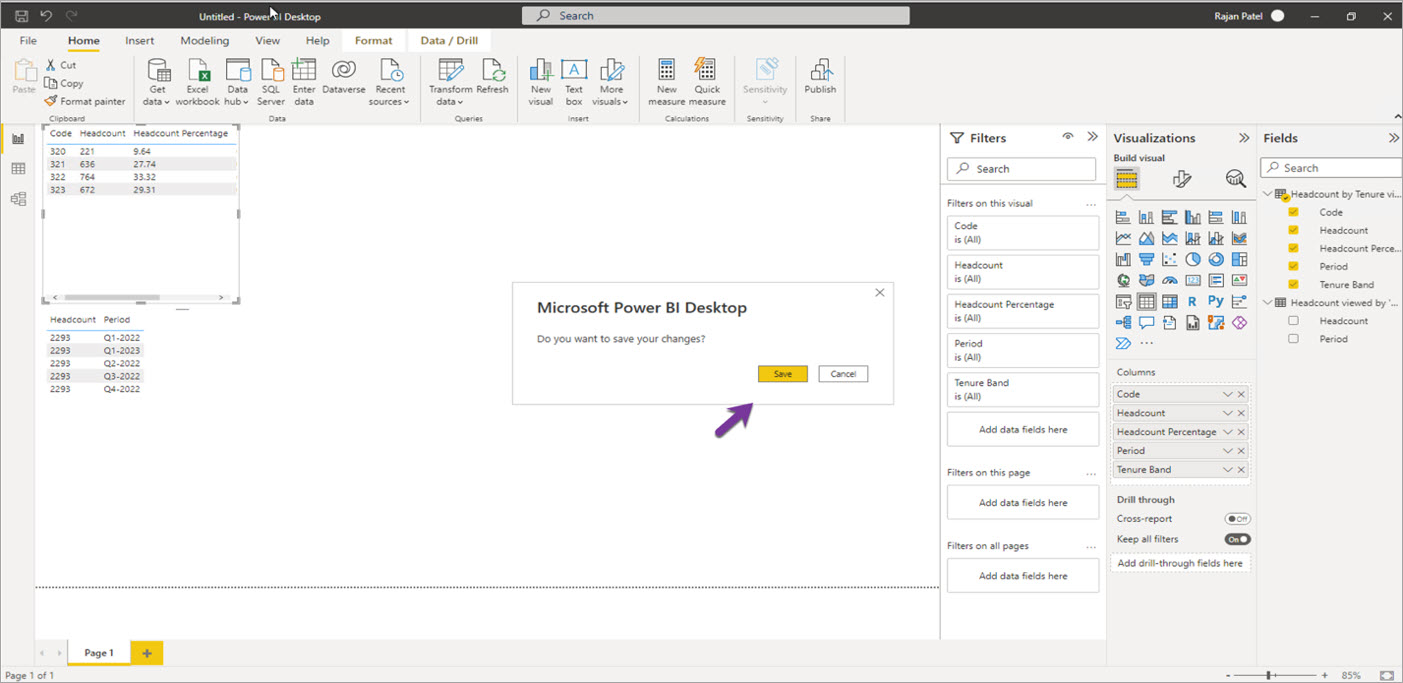
Save file on your machine.
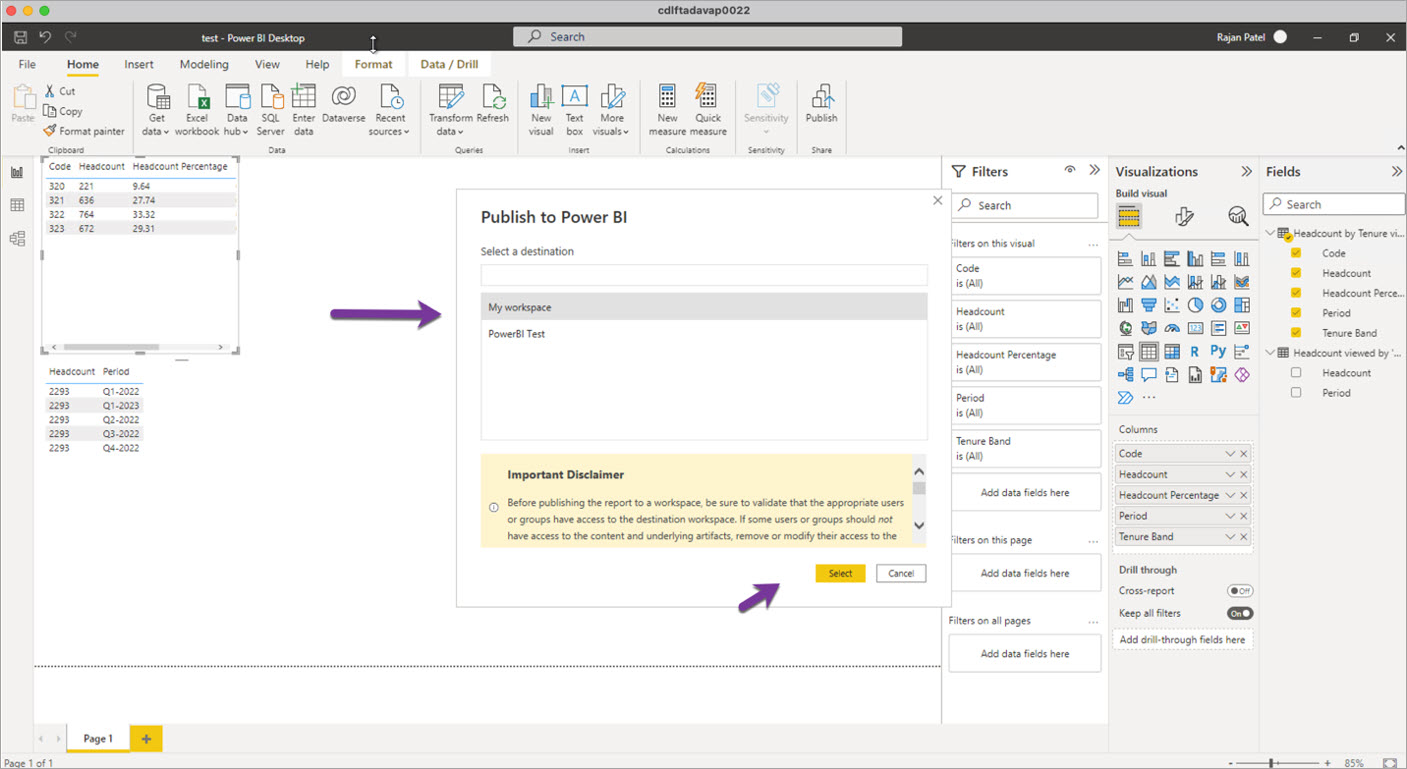
Select the Workspace where you want to publish reports (Create a new Workspace if no workspace is available).
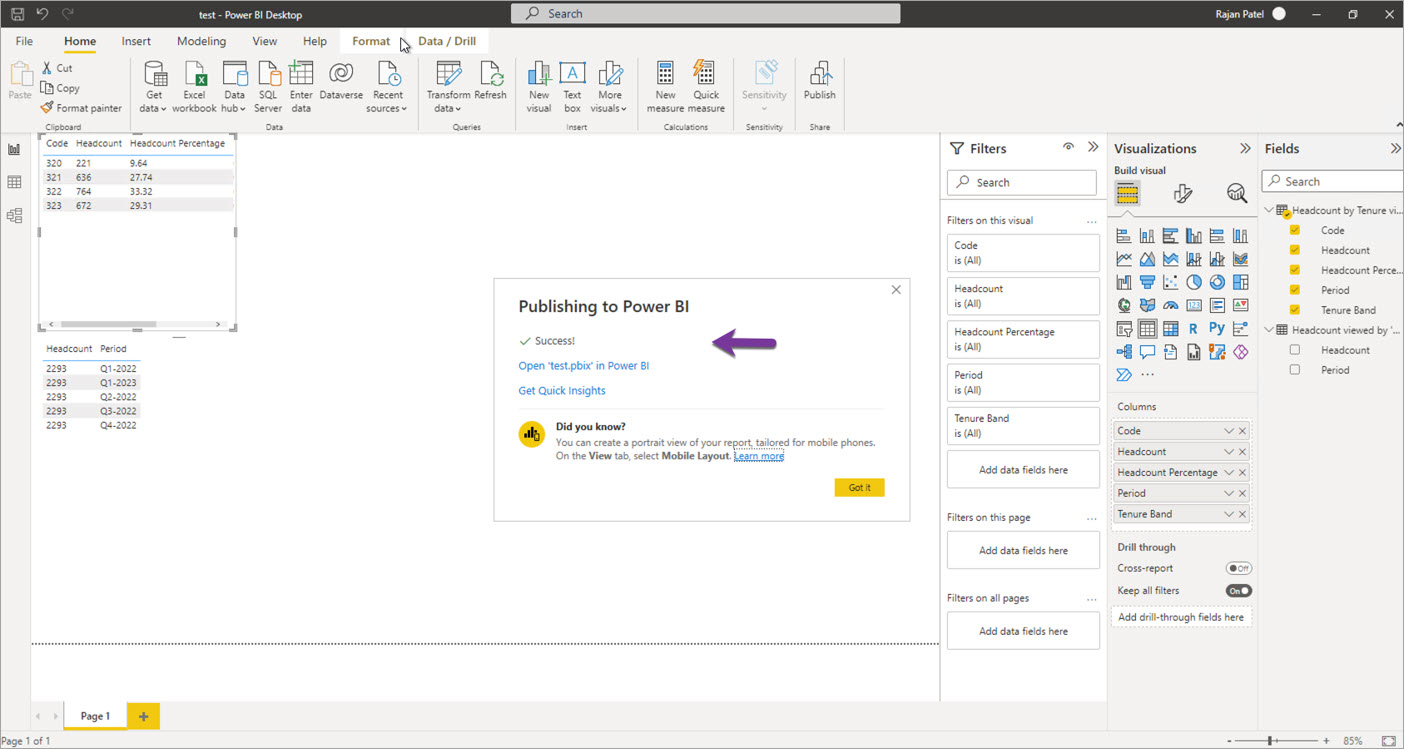
A success message will be displayed once the reports are published.
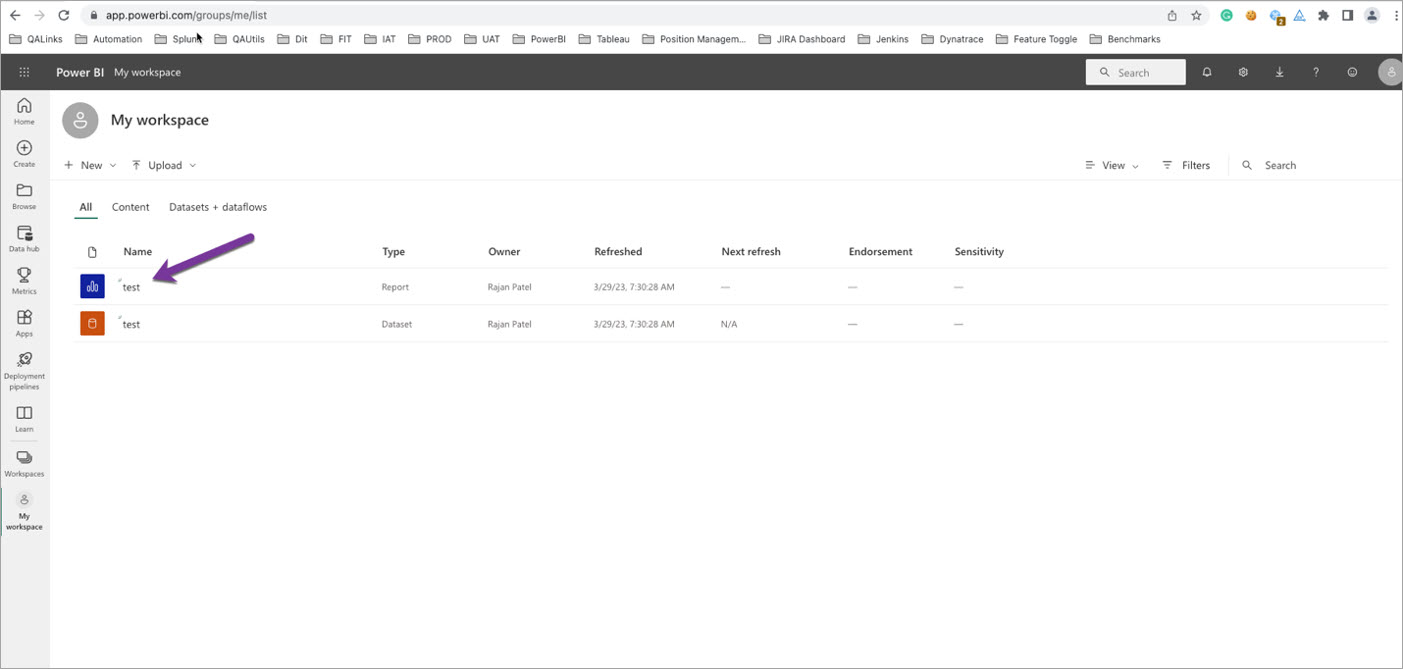
Go to https://app.powerbi.com/home. Reports should be available under selected Workspace. Click the first blue icon and validate the data for the reports.
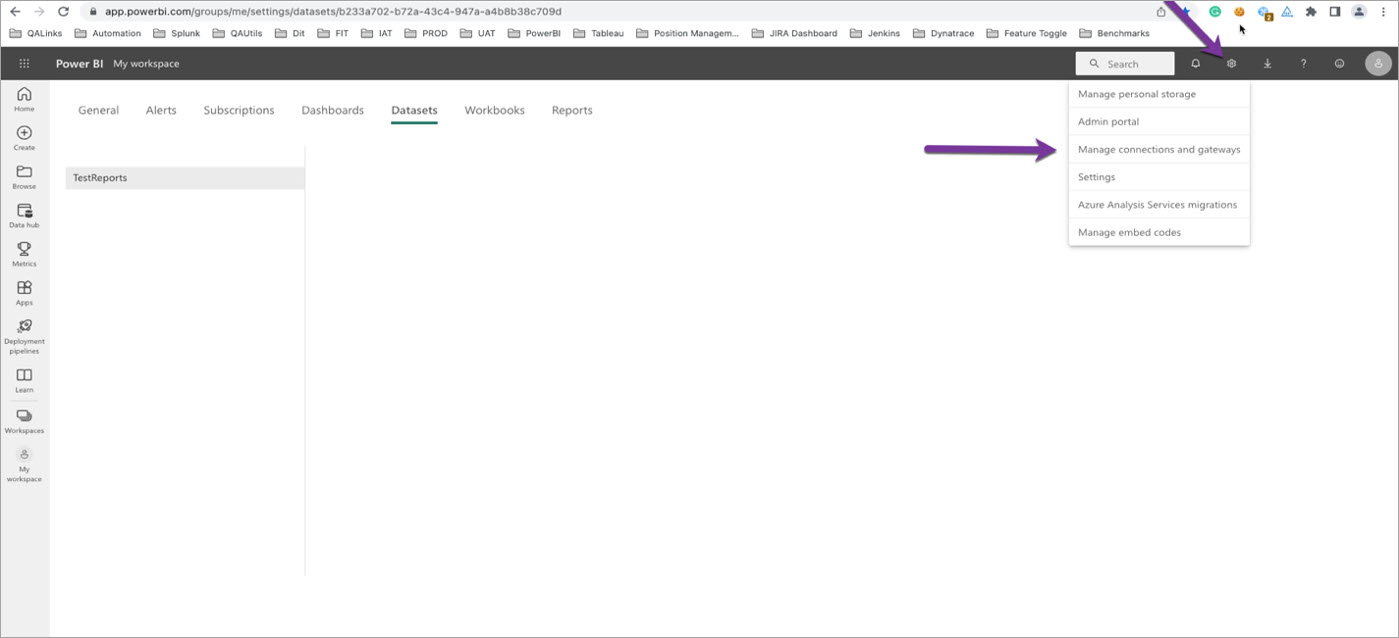
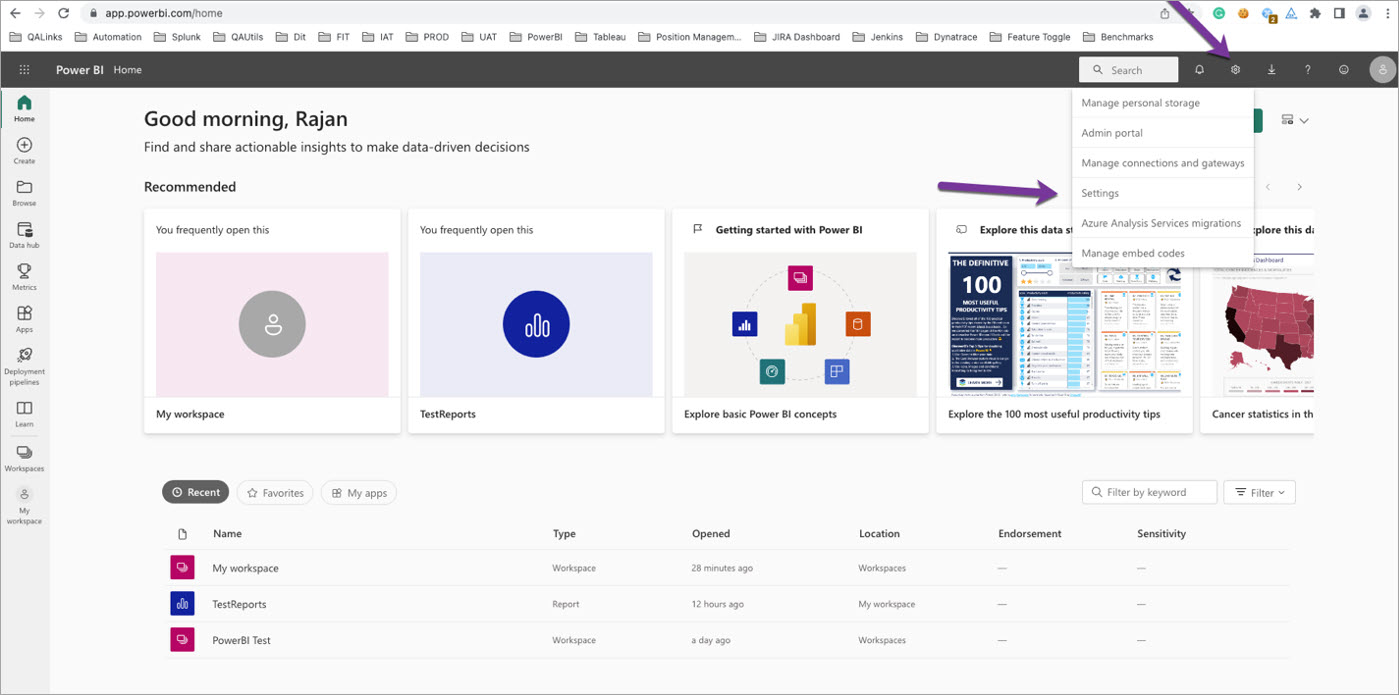
Click settings. Select Manage connections and gateways.
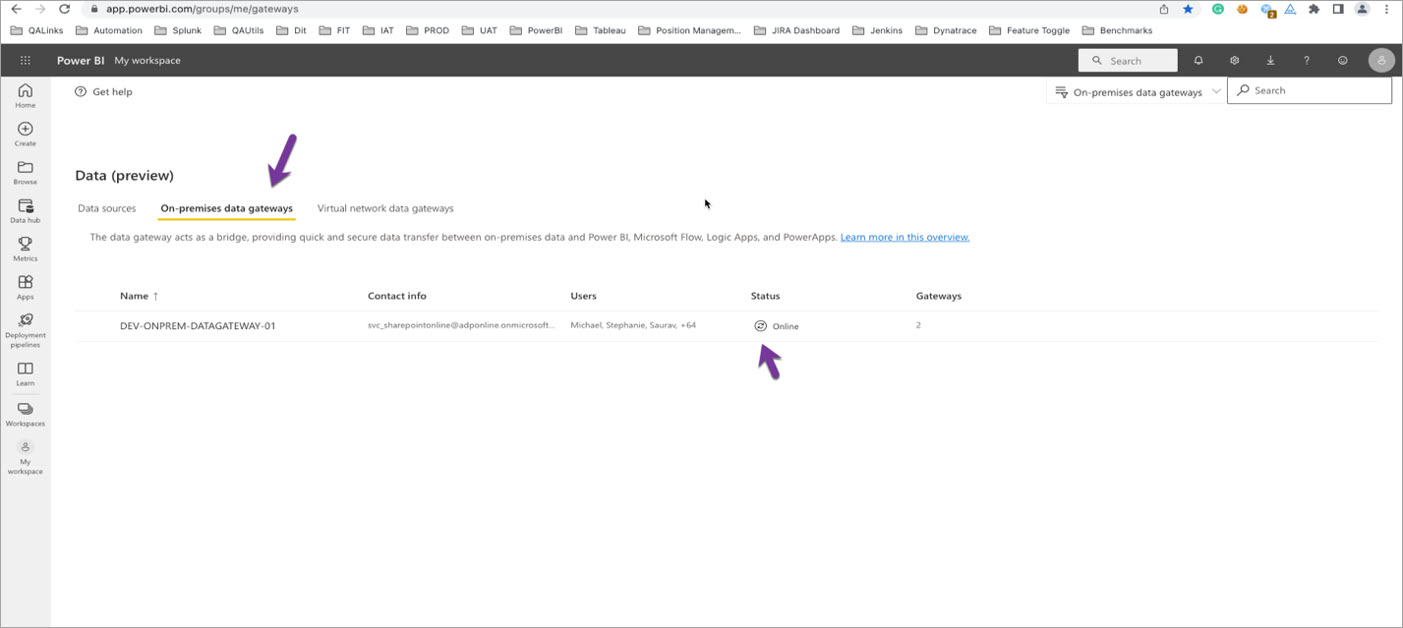
Select On-premises data gateways.
You will see the On-premises data gateways configured by your Organization's Admin. You can check the status by clicking the Status icon (Contact your Admin if you know the status offline).
To configure Data source:
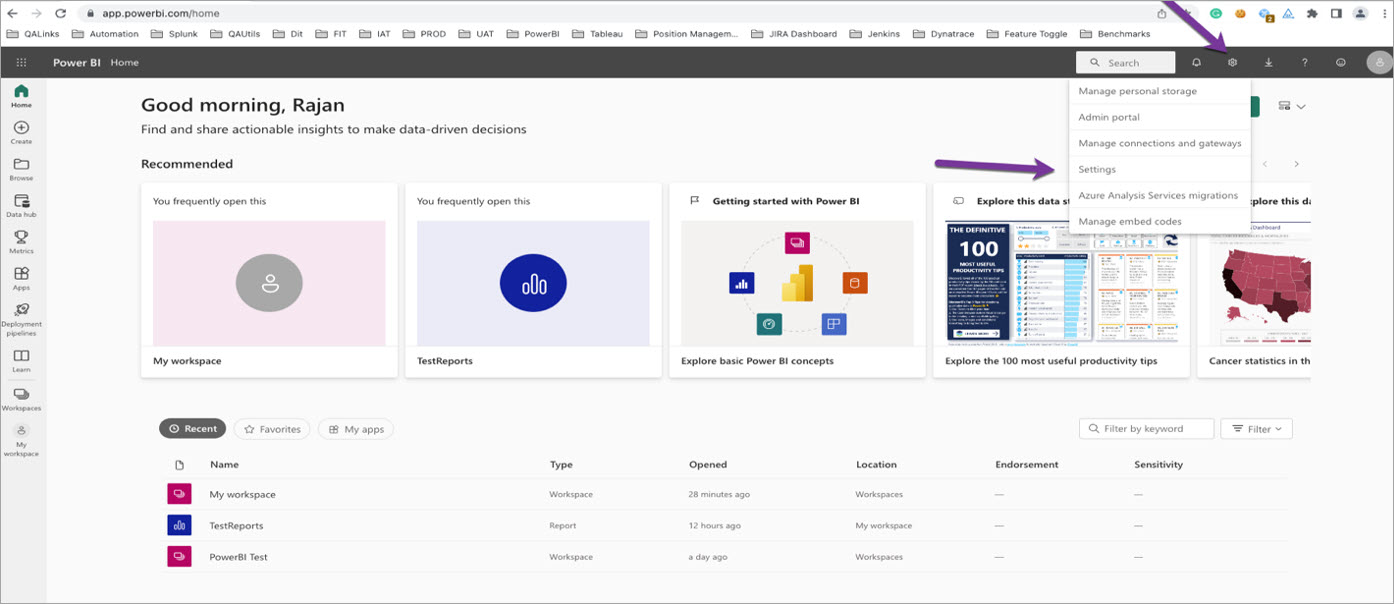
- Click setting
- Select Settings
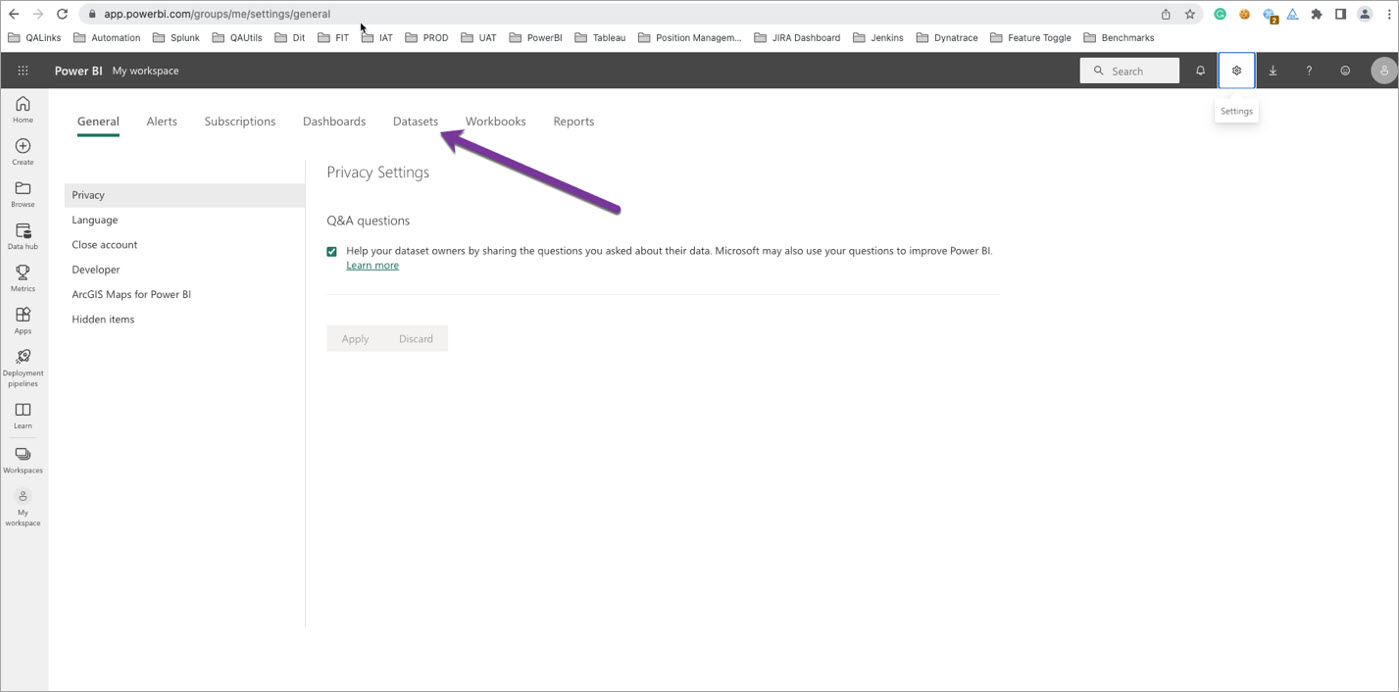
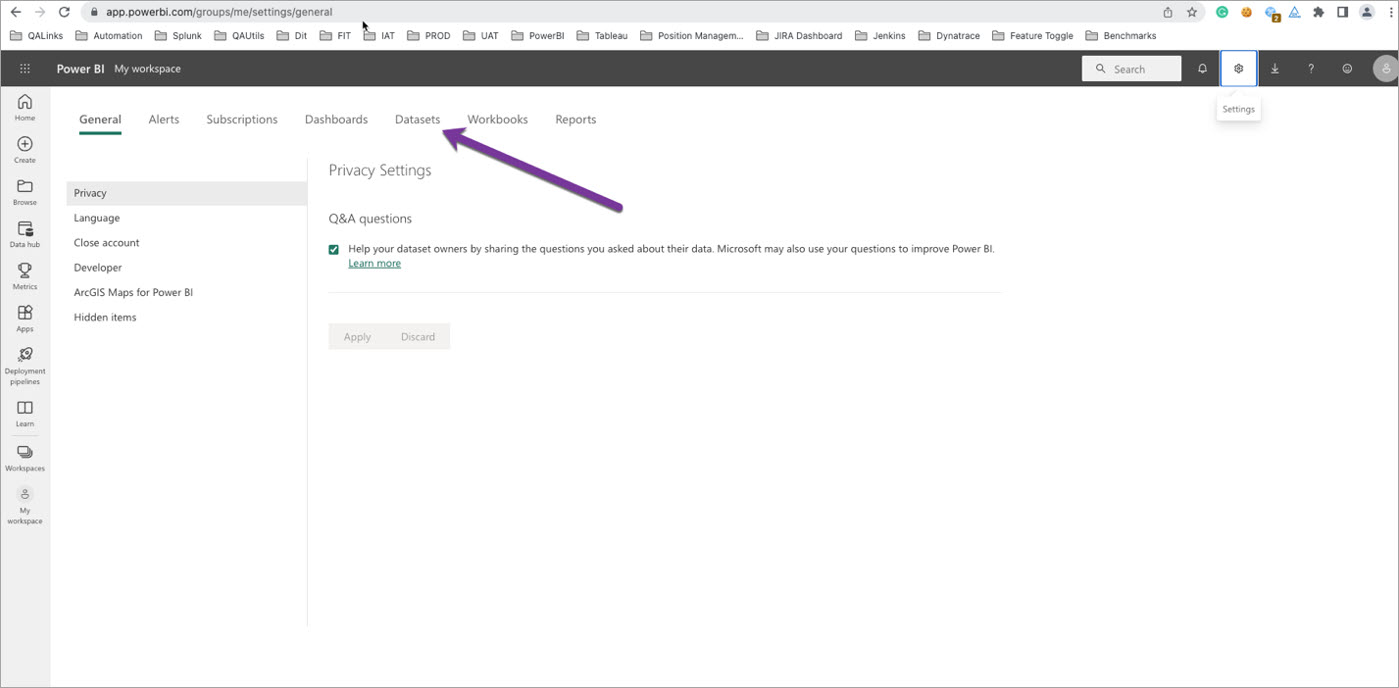
Select Datasets.
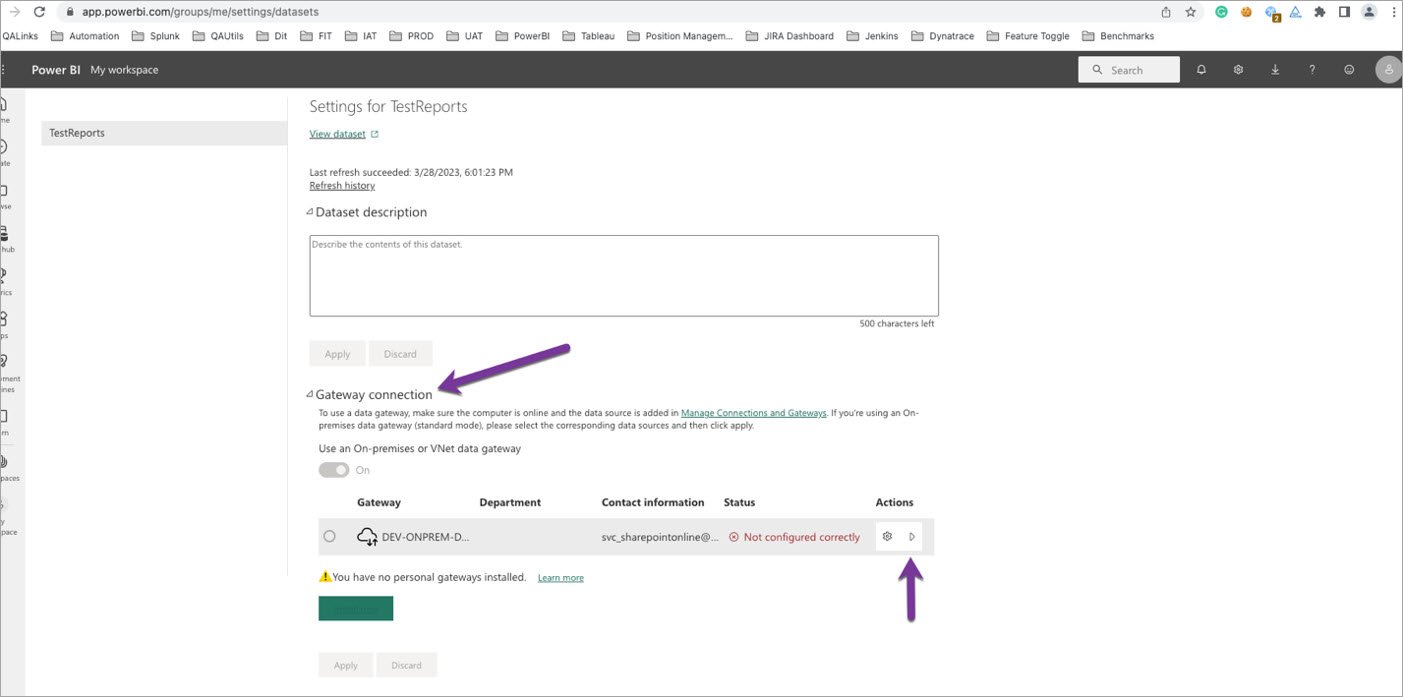
Open Gateway connection, the click Action button.
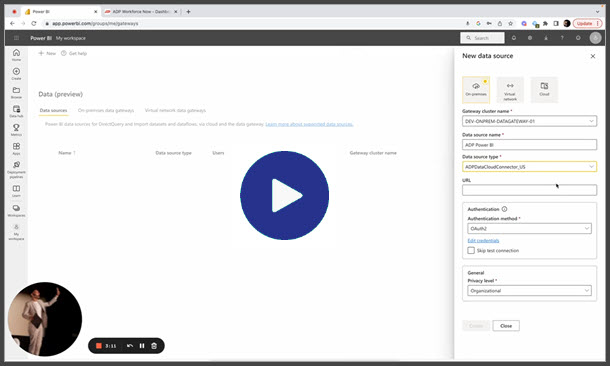
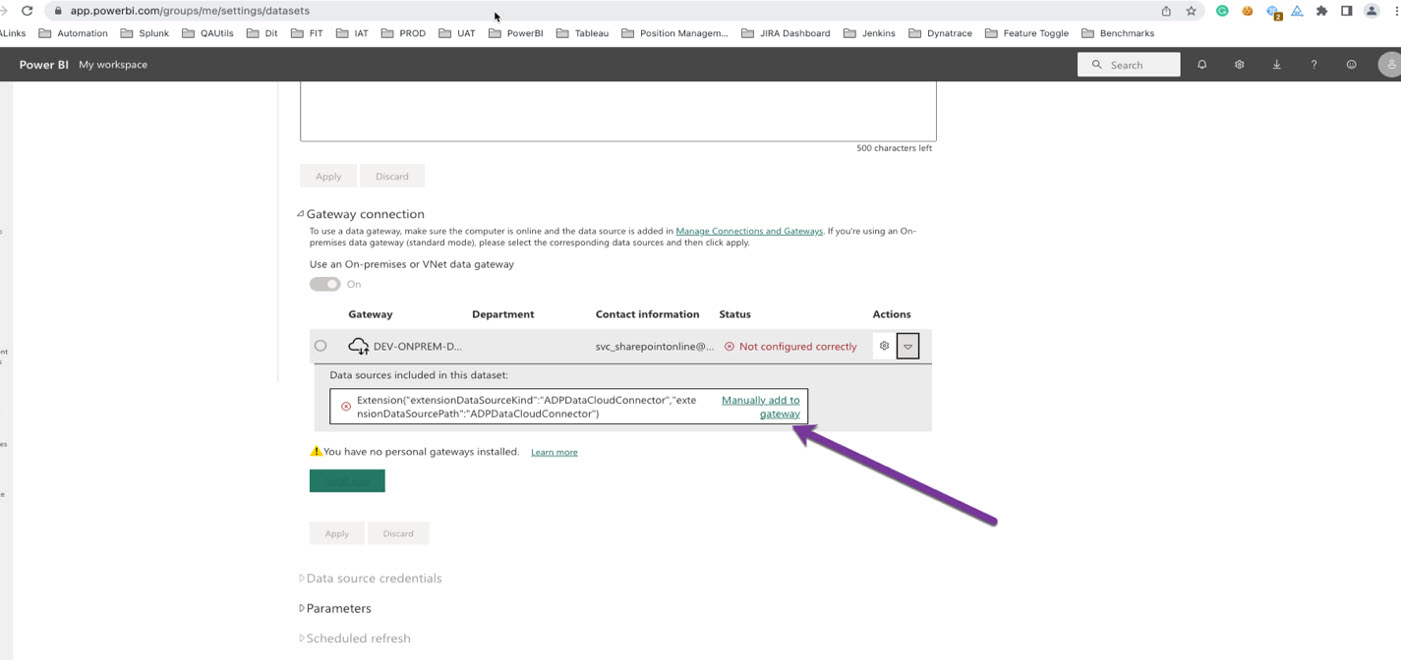
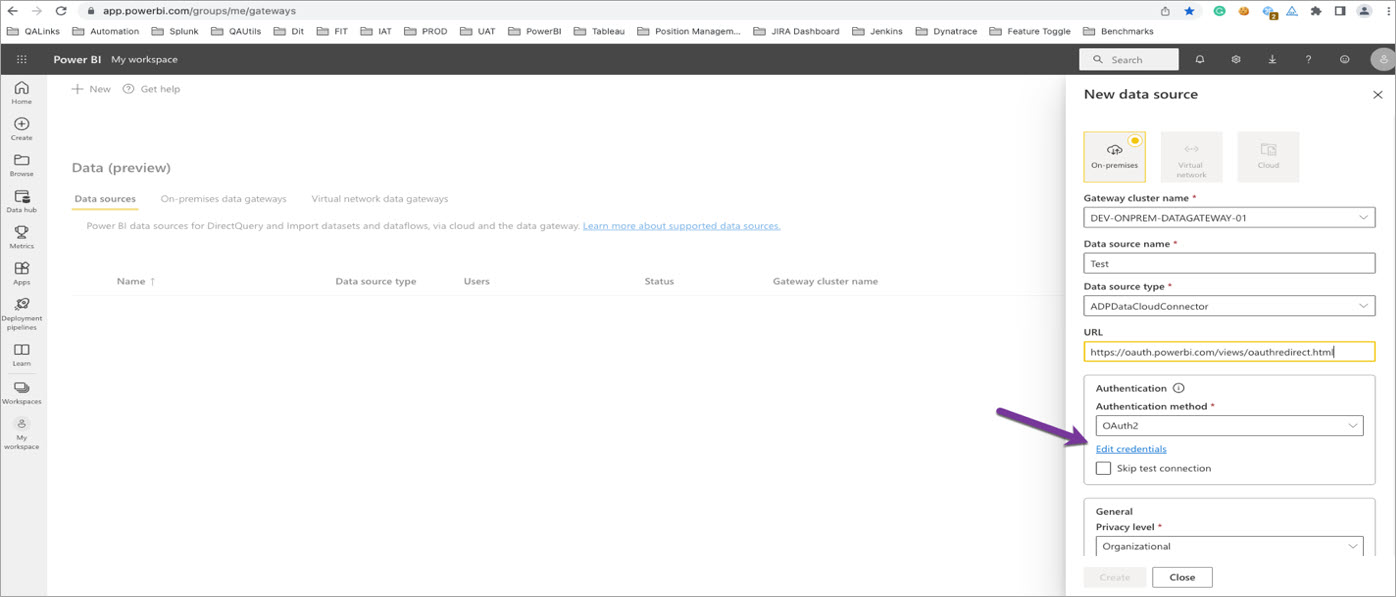
Select Manually add to gateway. It opens the New Data source Panel.
- Select the first option ON premises.
- Select Gateway cluster name from dropdown if not selected.
- Enter Data source name.
- Data source type "ADPDataCloudConnector"
- Enter URL: https://oauth.powerbi.com/views/oauthredirect.html
- Authentication method should be OAuth2.
- Click Edit credentials.
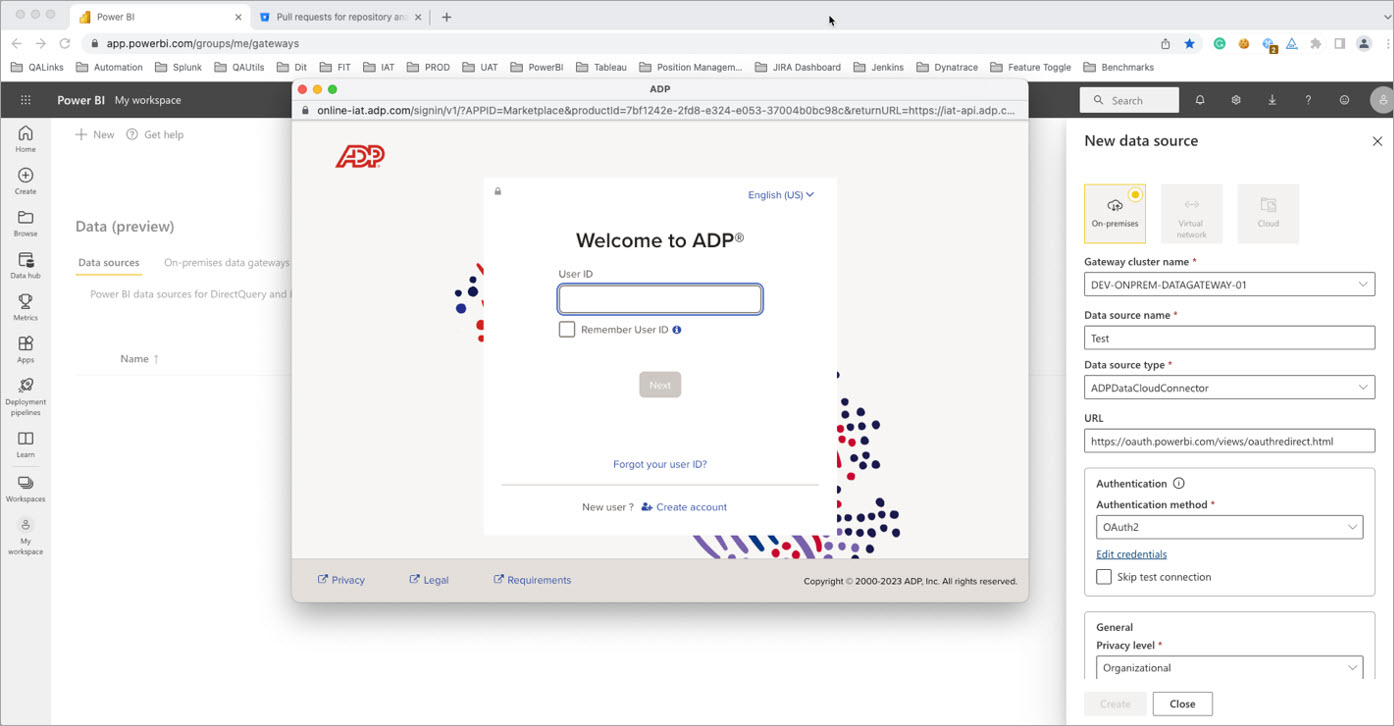
Enter ADP Login credentials.
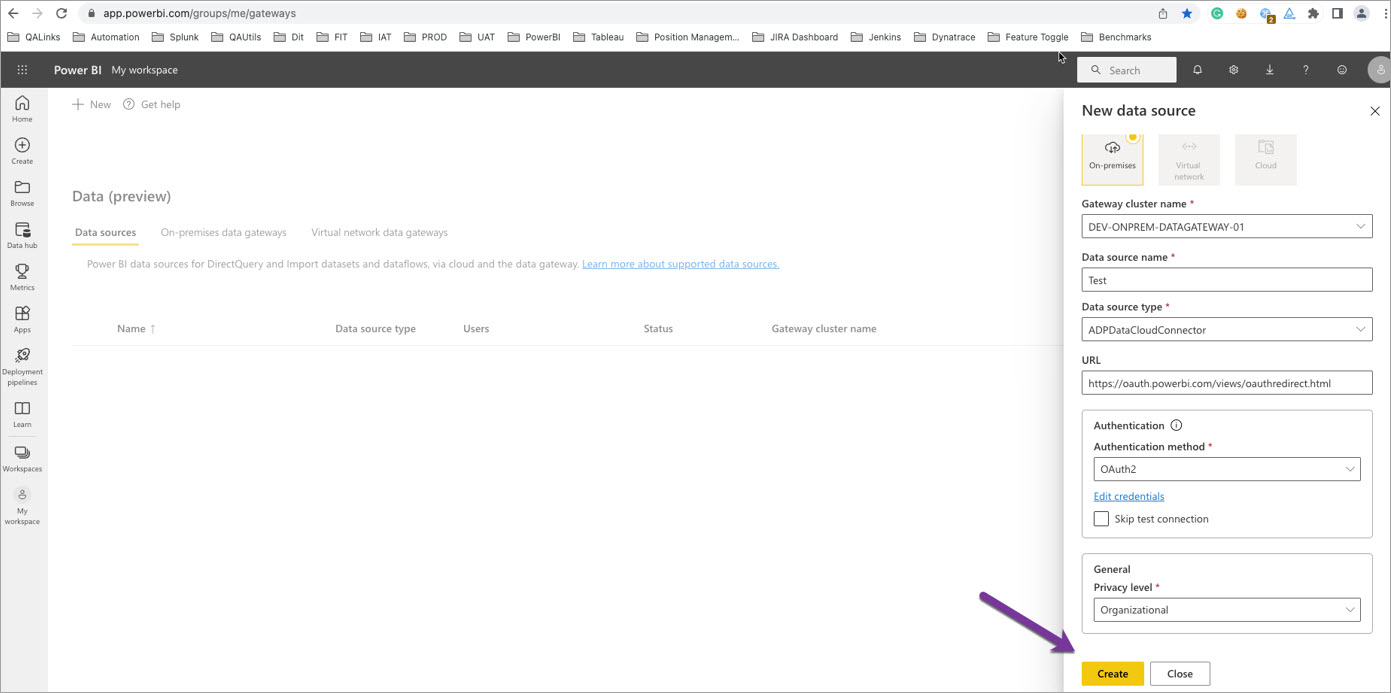
Click Create. Click Close button once the Data source created and there is no error at the top of the Panel.
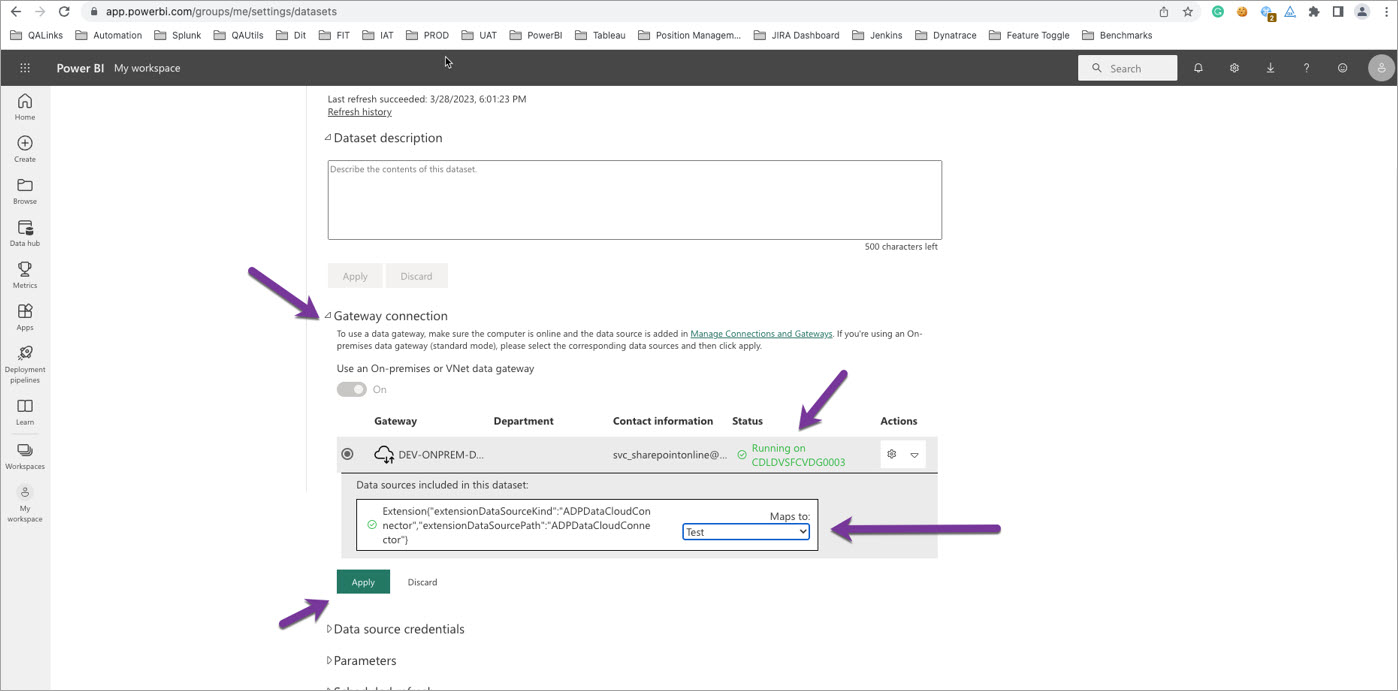
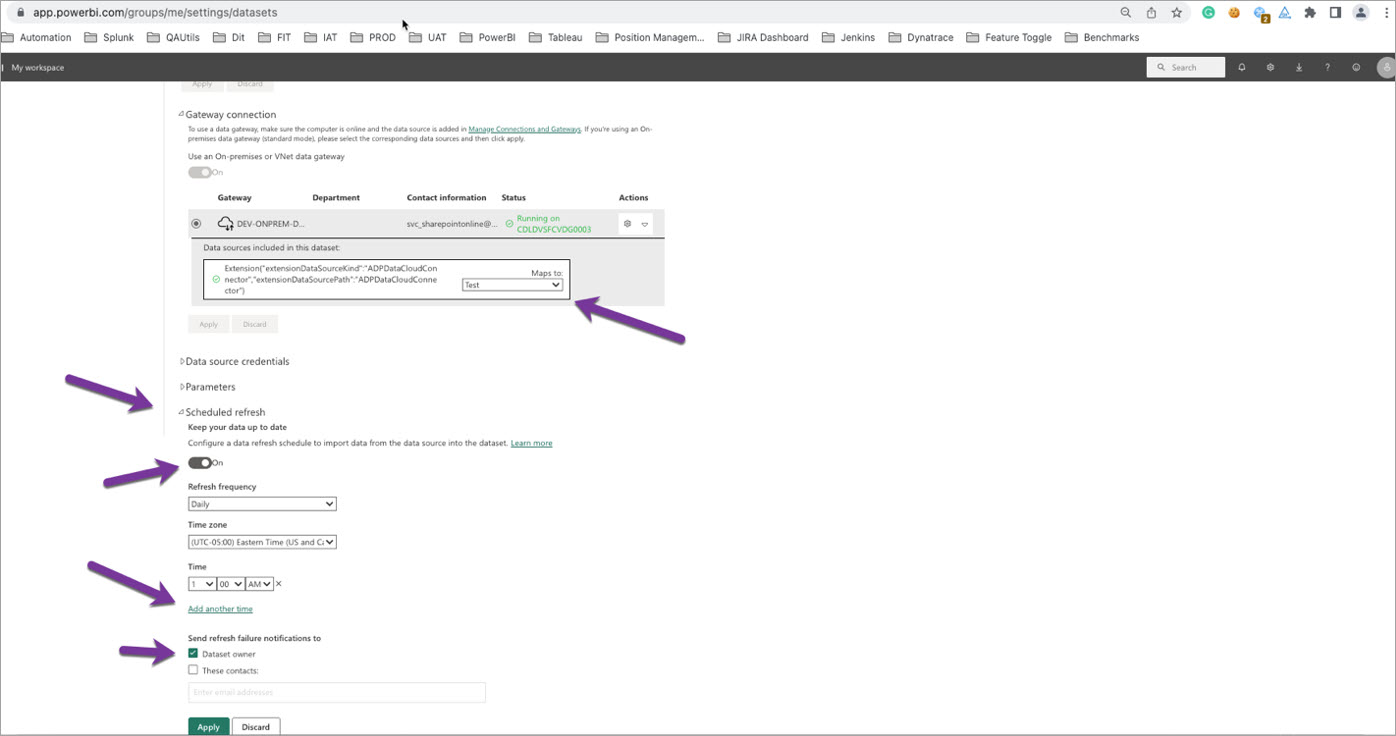
Open Gateway connection. The status should be Running on with the cluster name. Select the Data source name from Maps to dropdown and Click Apply button.
To schedule refresh:
Click setting >> Select Settings
Click Datasets.
Make sure the Gateway connection is Running and the Data source has been mapped:
- Click Scheduled refresh
- Click the Toggle button to ON
- Select refresh for Daily or Weekly from the Refresh Frequency dropdown
- Select Time zone
- Select Time (Click Add another time to schedule multiple refreshes (8 Max. per day)
- Select the Dataset Owner option to receive email notifications if the refresh has issues or failed for some reason
- Click Apply
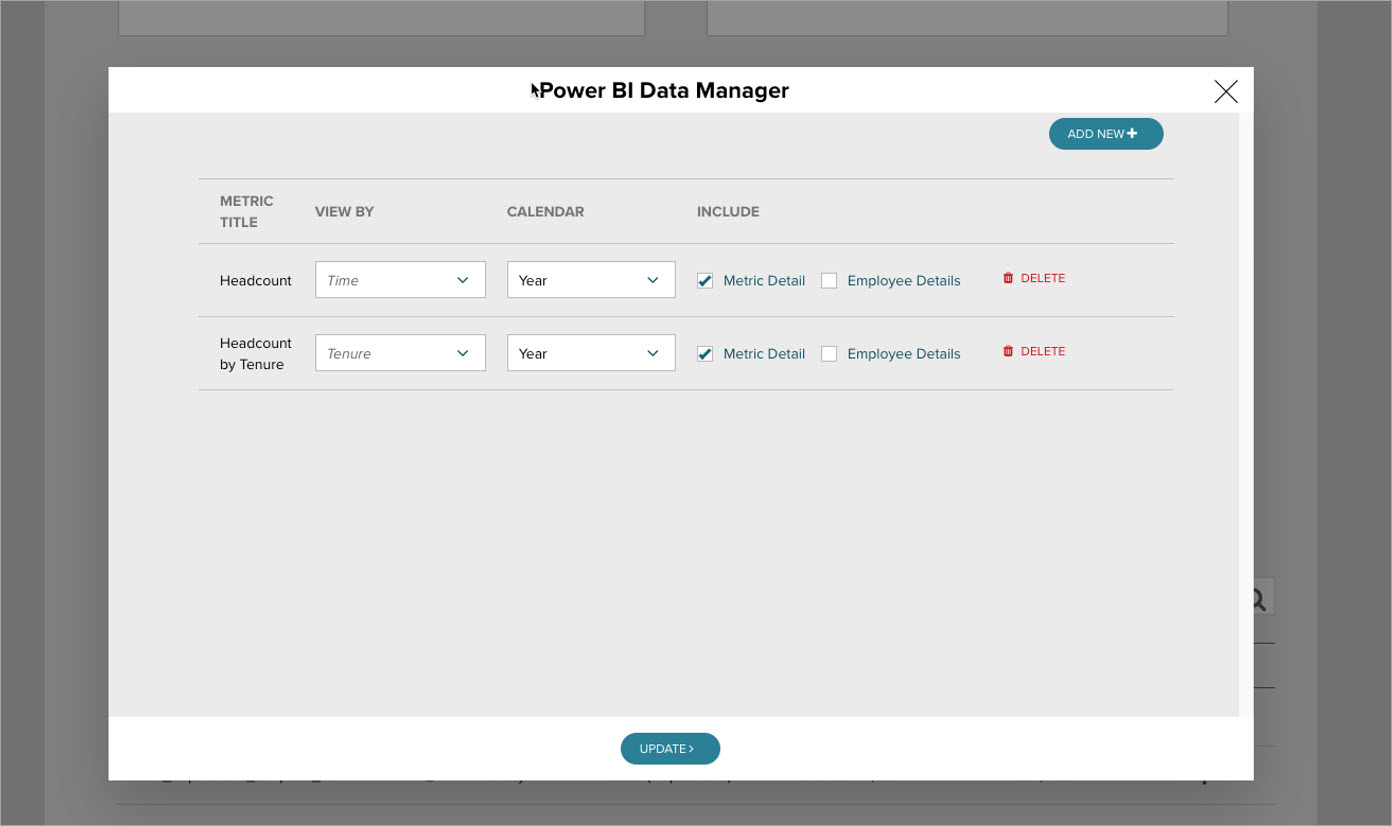
Make some changes to the metrics before the refresh scheduler runs. I changed Calendar (From Quarter to Year).
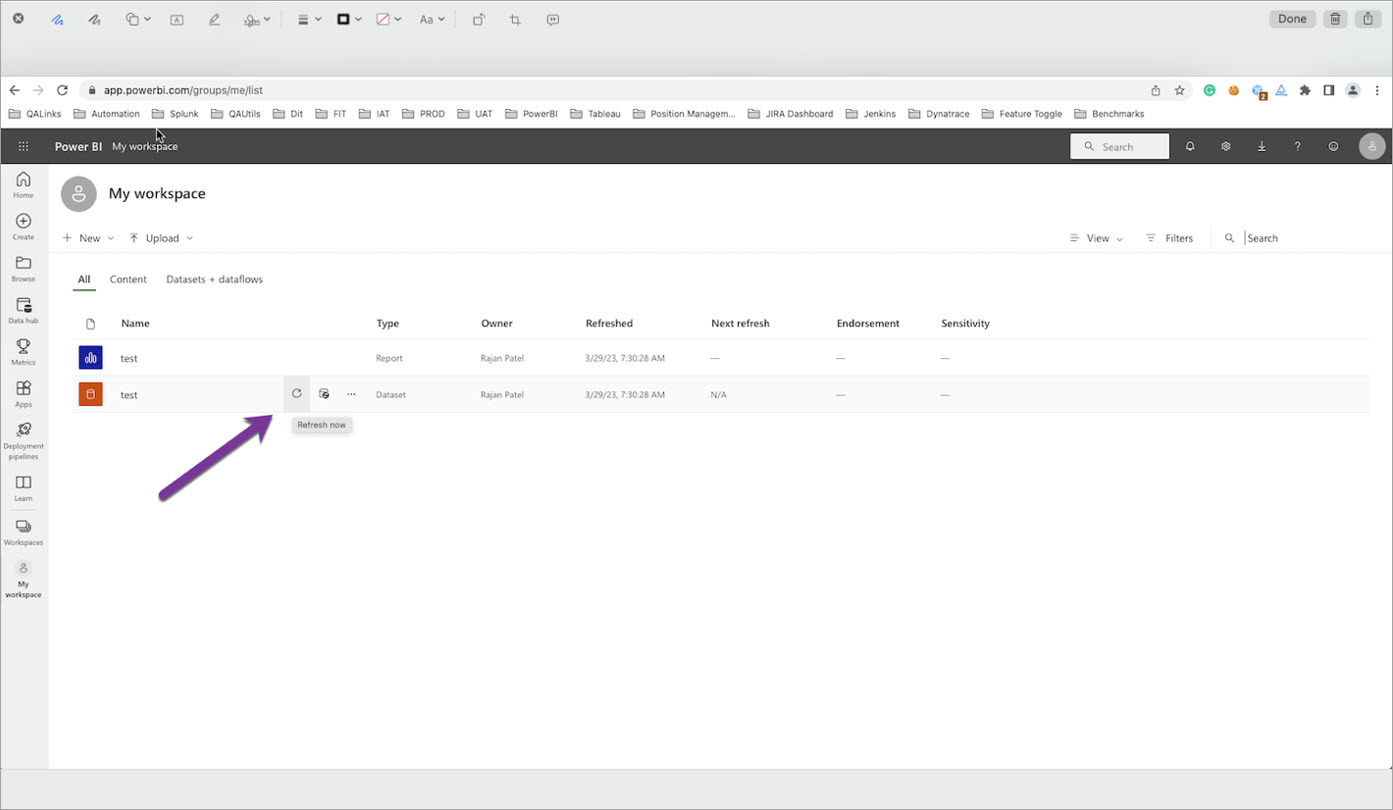
We can run the refresh manually by clicking refresh now icon from the Dataset or through the refresh scheduler.
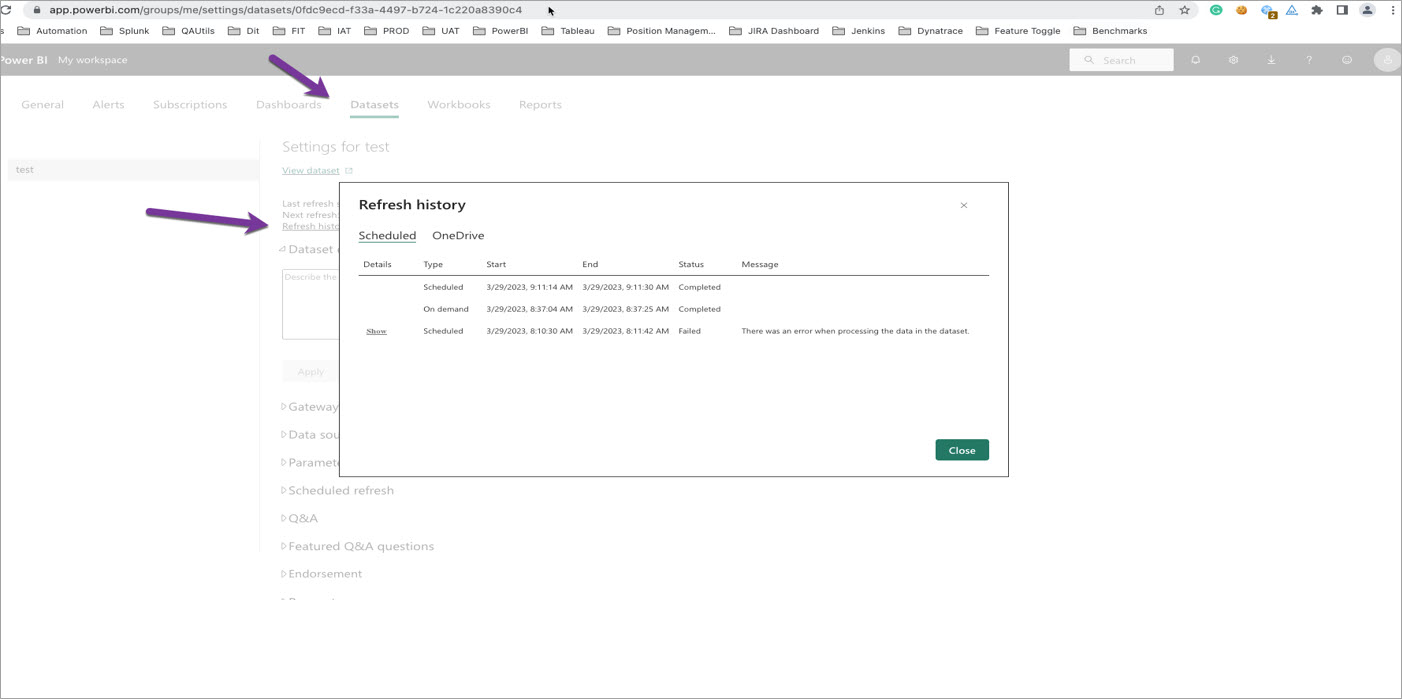
Select Datasets and click Refresh history once the refresh scheduler runs
Refresh history shows Refresh history details.
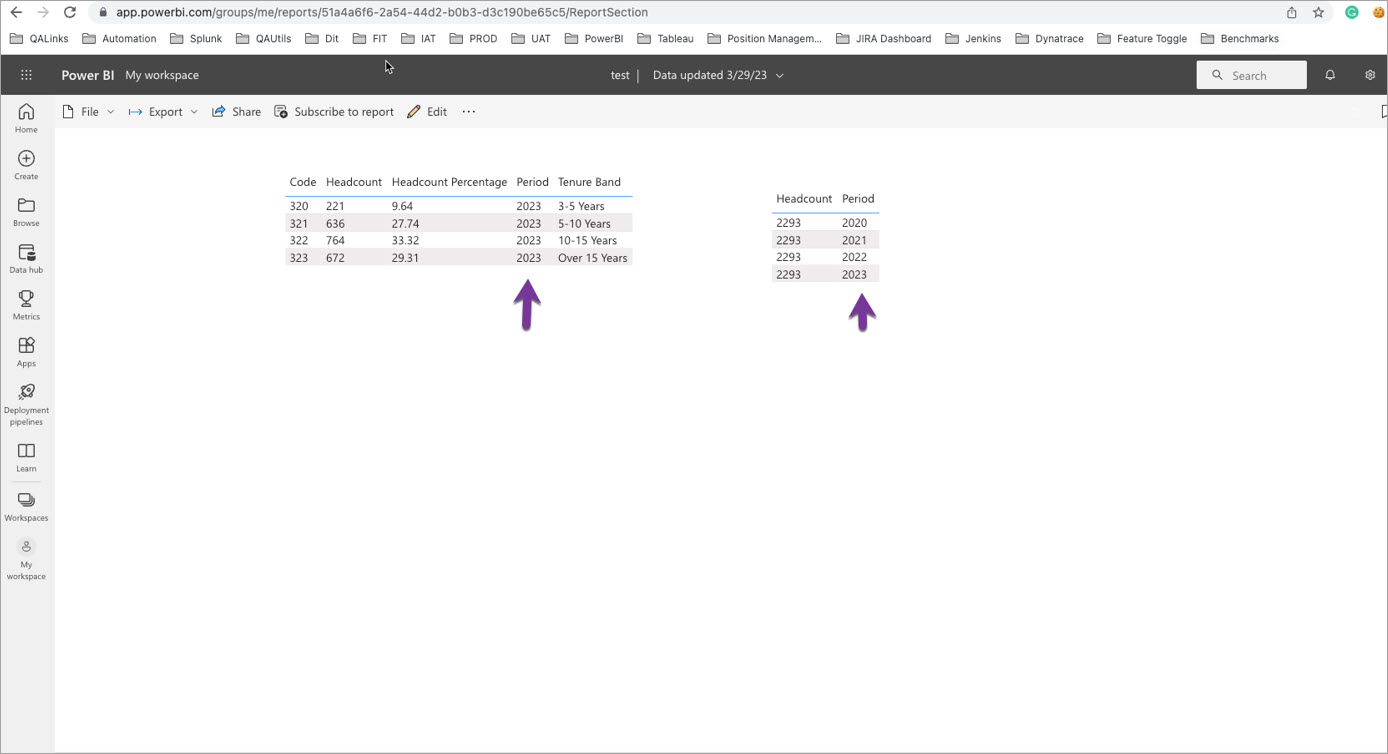
- Refresh browser
- Click Workspace
- Select report sheet
- Verify the changes (Period updated from Quarter to Year)
Follow the below troubleshooting steps if you receive an email with an invalid connection credentials error because the WIFI/VPN disconnected, the user password changed, or the user login session expired.
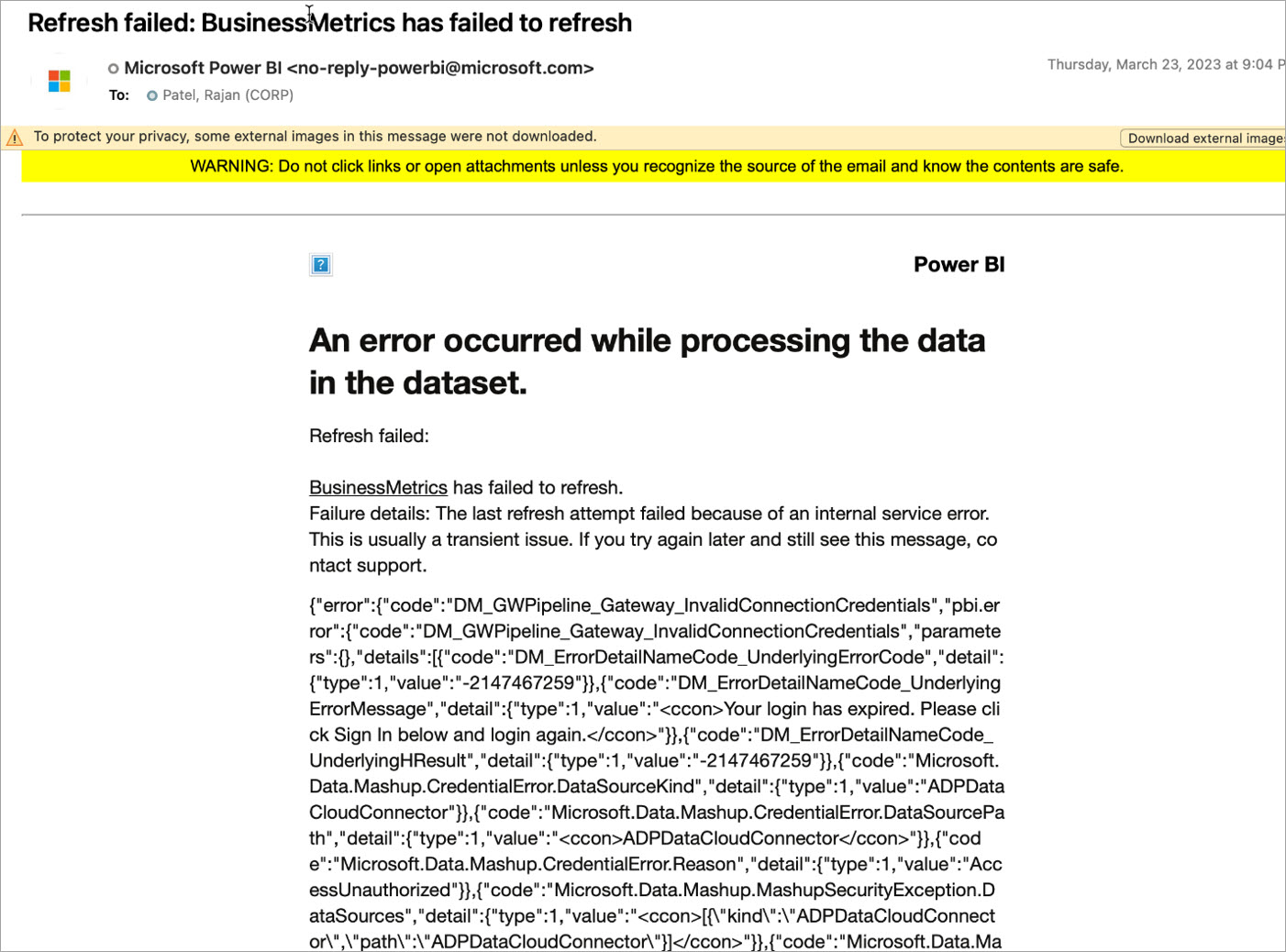
Go to Gateway connection and check for the below error.
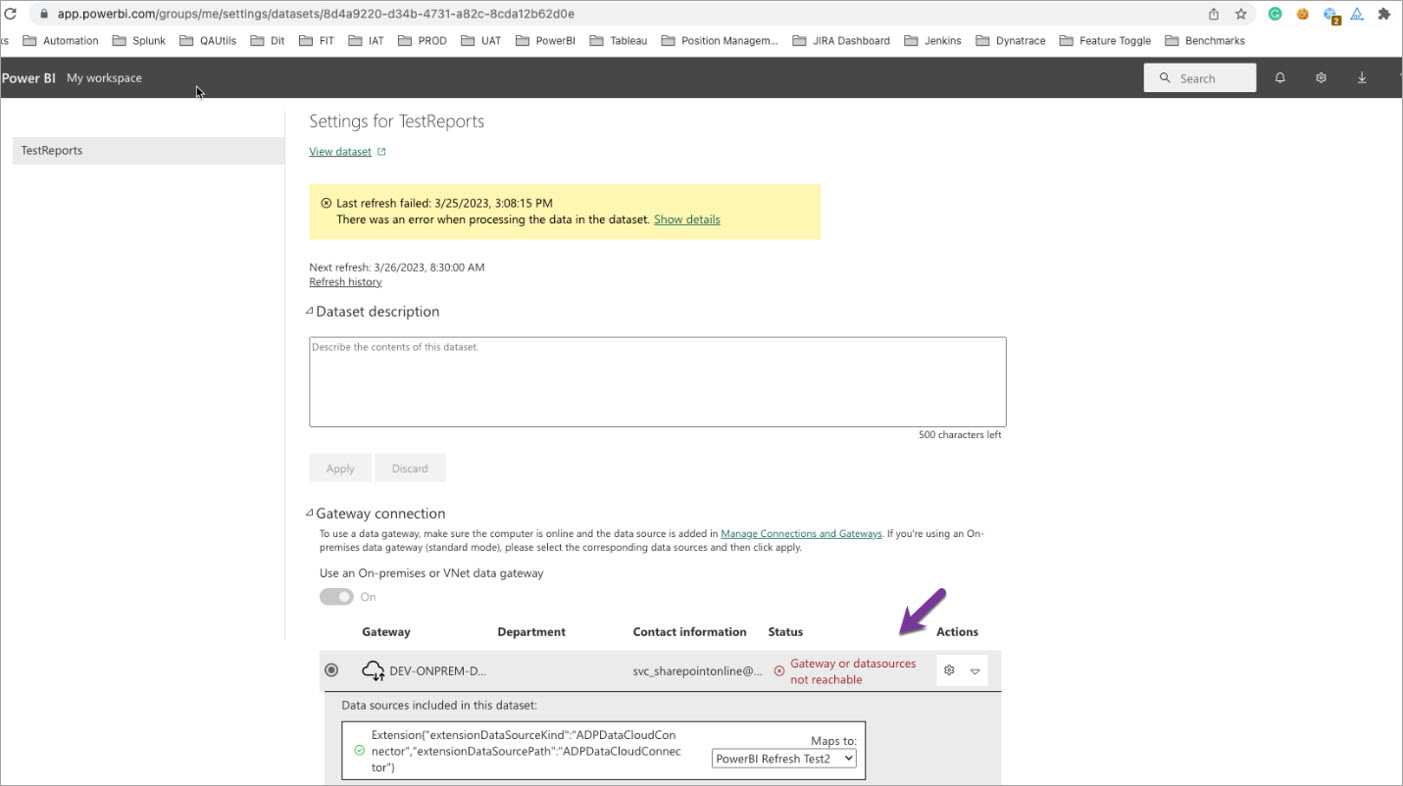
Go to Data source and check the Status.
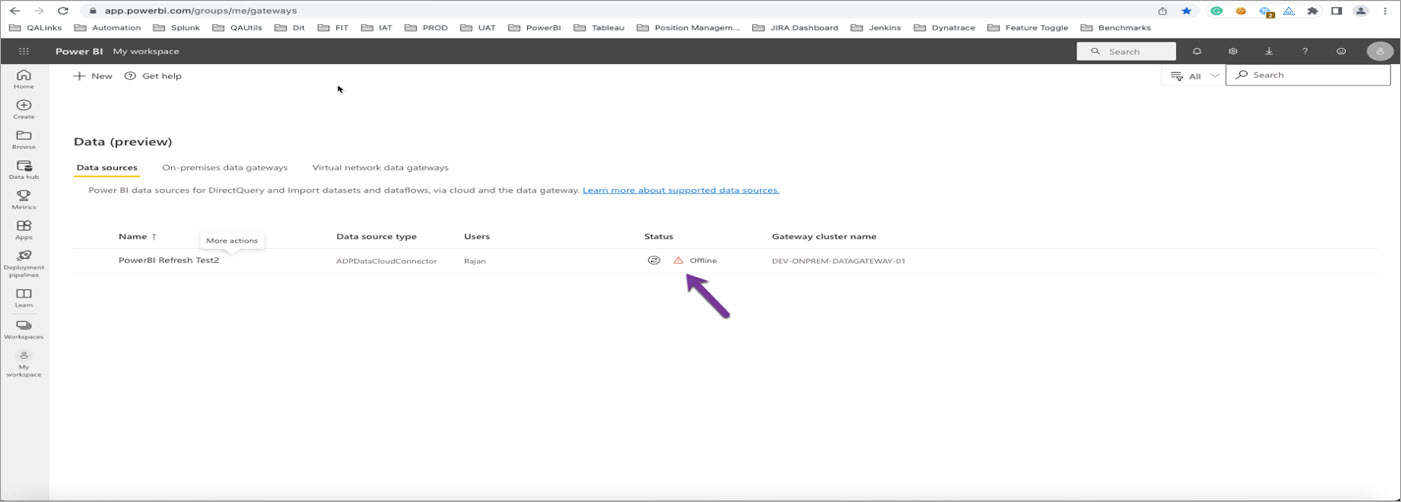
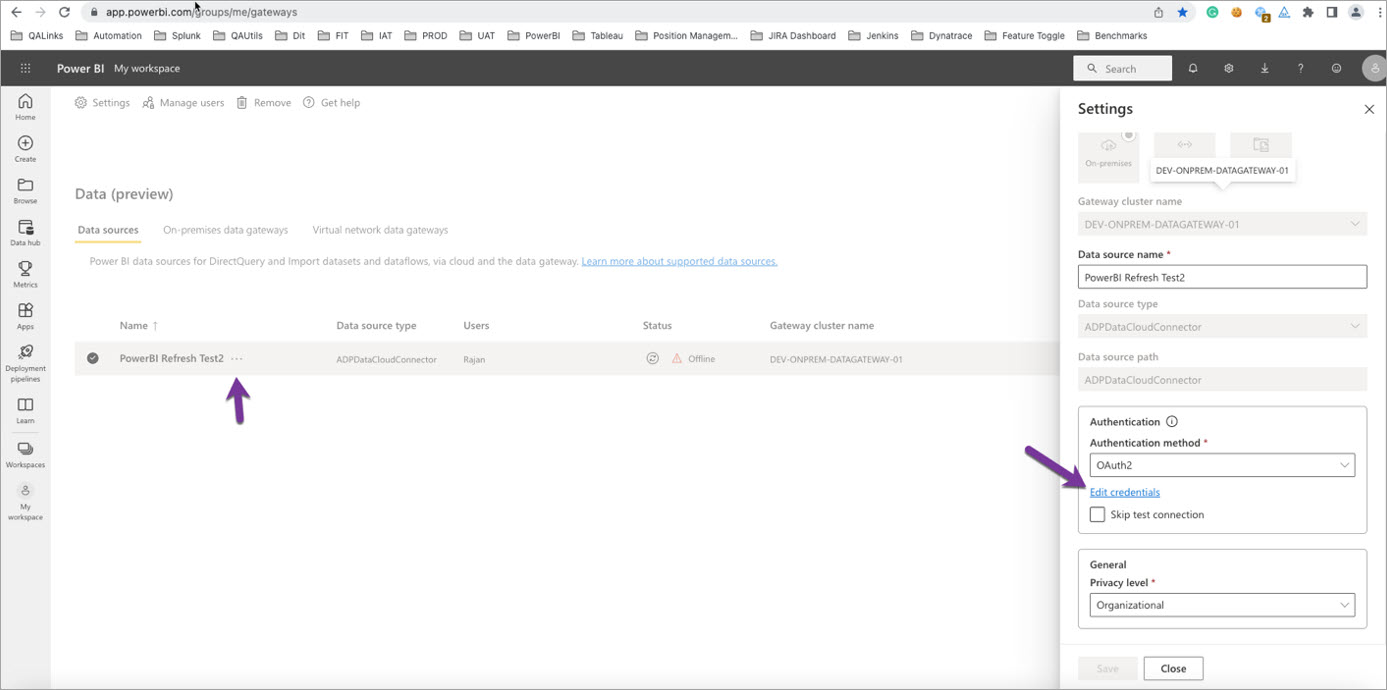
- Click actions icon and click settings
- Click Edit credentials
- Enter ADP Login credentials
- Click Save
- Check status, it should be online